MW4 DMZ Interactive Map Guide: Explore Hajin and Plan Routes
Find your next objective in Explore. Turn it into a route in Plan. A walkthrough of the controls, drawings, drafts and sharing tools.
The DMZ Codex interactive Hajin map has two modes: Explore finds places, loot and services; Plan builds an ordered route with stops, notes and drawings. You can explore and draw without an account. Sign in to save a plan to your account, create a share link for your own plan or publish it to the community.
- Explore: search by place, marker name or grid square
- Plan: numbered stops, route notes, polygons, circles and arrows
- Local drafts stay in this browser; account saves require sign-in
- A route line is a visit order, not automatic pathfinding
Open the interactive Hajin map · Start a route plan
Need a Police Station for an Order, a nearby clinic, or a route your squad can follow? Start with Explore to locate the place. Switch to Plan when you want to decide what to visit first and leave instructions for the next stop.
This guide covers the website controls. For Hajin’s districts, major areas and threat levels, use the Hajin geography guide.
Jump to: Explore search · Create a route · Drawing tools · Save and share · Phone and keyboard controls
Explore or Plan: choose your task
| What you want to do | Where to start |
|---|---|
| Find a location, service or grid square | Explore → Find a place |
| See only useful loot or service markers | Explore → Places, Loot or Intel filters |
| Learn what a marker represents | Select its pin, then read the place panel |
| Put several destinations in order | Plan → Find a place or Add stop |
| Mark a search area, direction or regroup point | Plan → Area, Arrow or Note |
| Send a plan to a squadmate | Share → Copy share link or Download image |
You can switch between the two modes on the same map. Exploring does not erase the plan you were editing.
Find places and grid squares in Explore
Open Explore and enter a place, service or marker name in Find a place. Try Police Station, Deadtown or a grid reference such as C4.
- Read the matching results and their grid labels.
- Select the result you need. The map centers on it and opens its information panel.
- Check the name, grid and description before using any linked location, service or guide.
A search for Police Station can also return an armory marker. The result’s category helps distinguish the service building from a locked room associated with it. The website grid uses columns A–J and rows 0–9; a cell identifies a map square, not a floor or doorway.
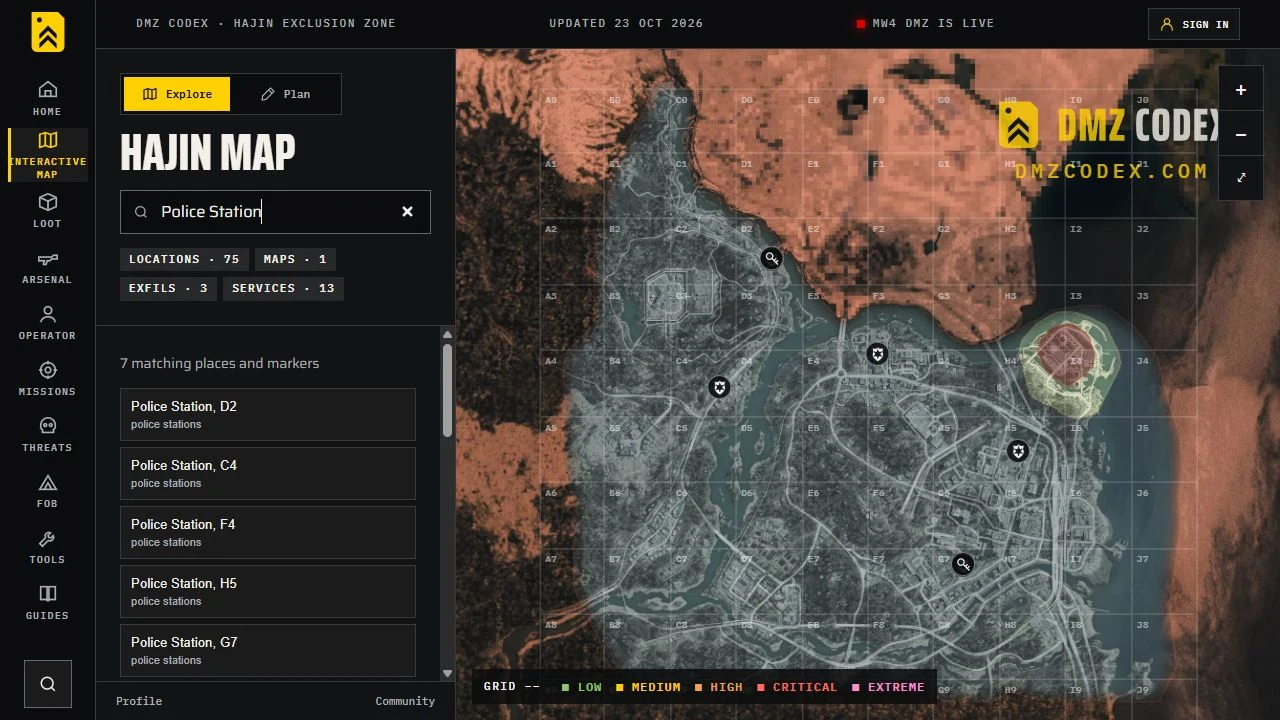
For example, the Police Station guide explains the Hostile Force objectives. The map helps you choose a station; the guide explains what you must do inside it.
Filter markers without losing useful context
The Explore panel divides Layers & filters into three tabs:
| Tab | What it helps you find |
|---|---|
| Places | Major POIs, place names, strongholds, compounds, clinics, Police Stations, Gas Stations and other services |
| Loot | Key rooms, dead drops, safes, hidden caches, computers, medical containers and other loot markers |
| Intel | Exfils, player spawn areas, UAV Towers, SAM Sites, radiation markers, vehicle sightings and other tactical references |
Use a layer’s checkbox to show or hide it. Hide group and Show group affect the tab you are viewing, rather than clearing every other tab. To make a stripped-down map, review all three groups. A disabled Unmapped layer means that category has no plotted positions; it does not prove the game has no such locations.
If a result says select to show layer, selecting it reveals the relevant layer. If the map still looks filtered unexpectedly, clear the search text and check the layer boxes. A key-specific link can also open a restricted key view; use its Clear key filter control to return to the general map.
The Key Finder has separate Doors and Key sources views. A shaded approximate area is a search clue. Check its note for what is known about the door or pickup, and use the keys guide for access requirements.
Build your first route in Plan
Switch to Plan or open the planner directly. Give the plan a name describing the task, such as “Counterfeit part 1” or “Clinic and extraction preparation.”
There are two ways to add a stop:
- Use an existing map place: choose Find a place, select a result, then use Add to plan in its information panel.
- Choose your own point: select Add stop or the Stop tool and tap the map. Give the point a label and a short note in the dialog.
Stops receive numbers and connect in their listed order. Select a stop in Your route to locate it on the map. Use Edit to change its label or note, and the up/down controls to change its position in the sequence. Add the overall objective, equipment reminders and fallback instructions to Squad briefing.
Write notes as actions: “Search three containers inside,” “Check the door prompt,” or “Use another safe if already looted.” A place name tells the squad where to go; the note tells them what to do there.
The connecting line is a visit order. It does not calculate a walkable, fastest or safest path. Check roads, terrain, entrances and match conditions yourself. The planner also does not mark an objective as completed in your game.
Try the Counterfeit part 1 example
Open the Counterfeit part 1 plan
This example groups three related Orders into one western-Hajin visit order:
- Police Station C4 — Hostile Force: search three containers and eliminate five soldiers while inside the station.
- Compound Foxtrot B4 — Robbery safe search: investigate the reported office safe lead. The pin marks the compound, not an exact safe position; use another safe if needed.
- Deadtown — Execute Intel: follow the active in-game Tac-Map to a UAV in Deadtown, hack it, eliminate five scanned North Korean soldiers and collect the named Counterfeit Cash pickup.
Robbery also needs a successful extraction with 5,000 combined backpack and loadout value. Check your active objectives and inventory before leaving. Choose an available exit in your match; the example leaves the final extraction choice to your deployment.
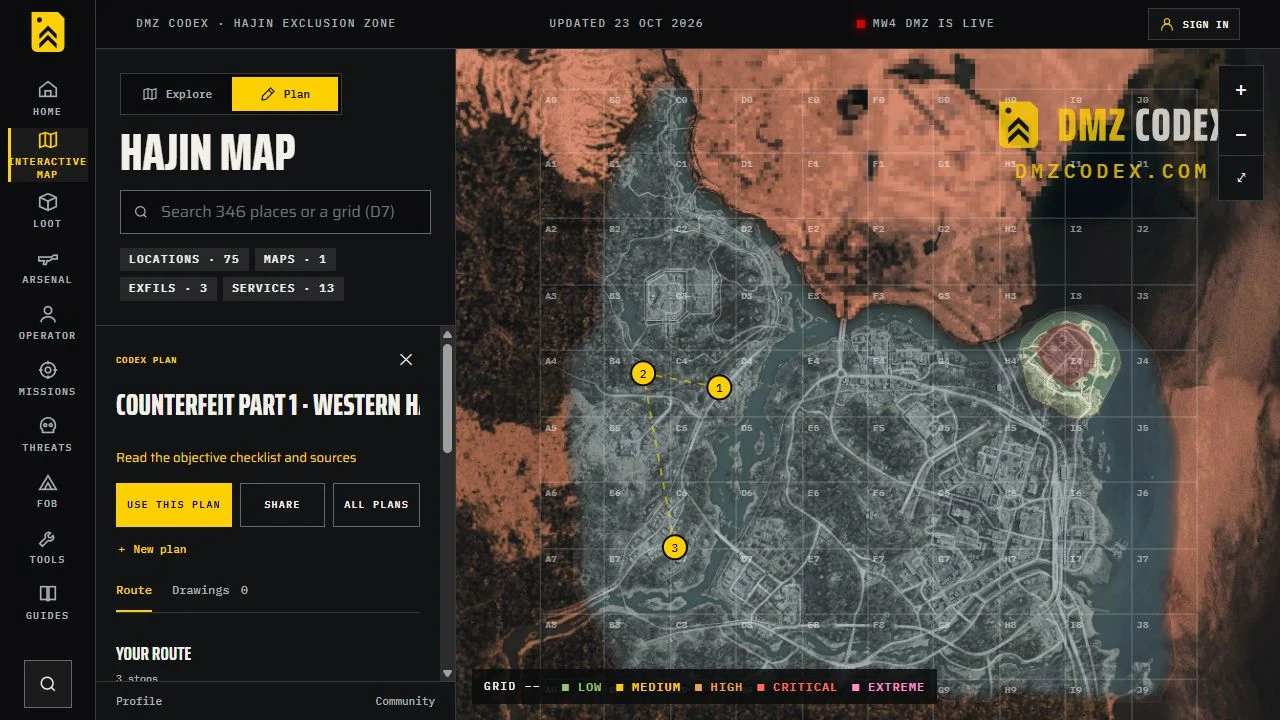
The example opens read-only. Use this plan makes your own editable copy without signing in. Its suggested order can change with your spawn and conditions. The Counterfeit walkthrough contains the full objective checklist, with dedicated guides for safe searches and Execute Intel.
Draw polygons, circles, arrows and notes
Use drawings to explain an instruction that a numbered stop cannot express. The toolbar provides these tools:
| Tool | How to use it | Example use |
|---|---|---|
| Pan | Drag the map | Move the view without adding a mark |
| Draw | Drag a freehand stroke | Sketch an approach to discuss with the squad |
| Line | Drag between two points | Mark a boundary or reference line |
| Arrow | Drag from the start toward the destination | Show an intended direction |
| Area | Tap at least three corners, then choose Finish area | Outline a search or regroup area |
| Circle | Drag outward from the center | Highlight a point and its surroundings |
| Note | Tap the map and enter text | Write a brief instruction on the map |
| Move | Drag an existing numbered stop or drawing | Reposition a mark |
For an Area polygon, Cancel or Escape abandons the unfinished outline. Return to Pan when you finish drawing. Open Drawing color and thickness for preset/custom colors and line width; Apply style to route changes the connecting route line.
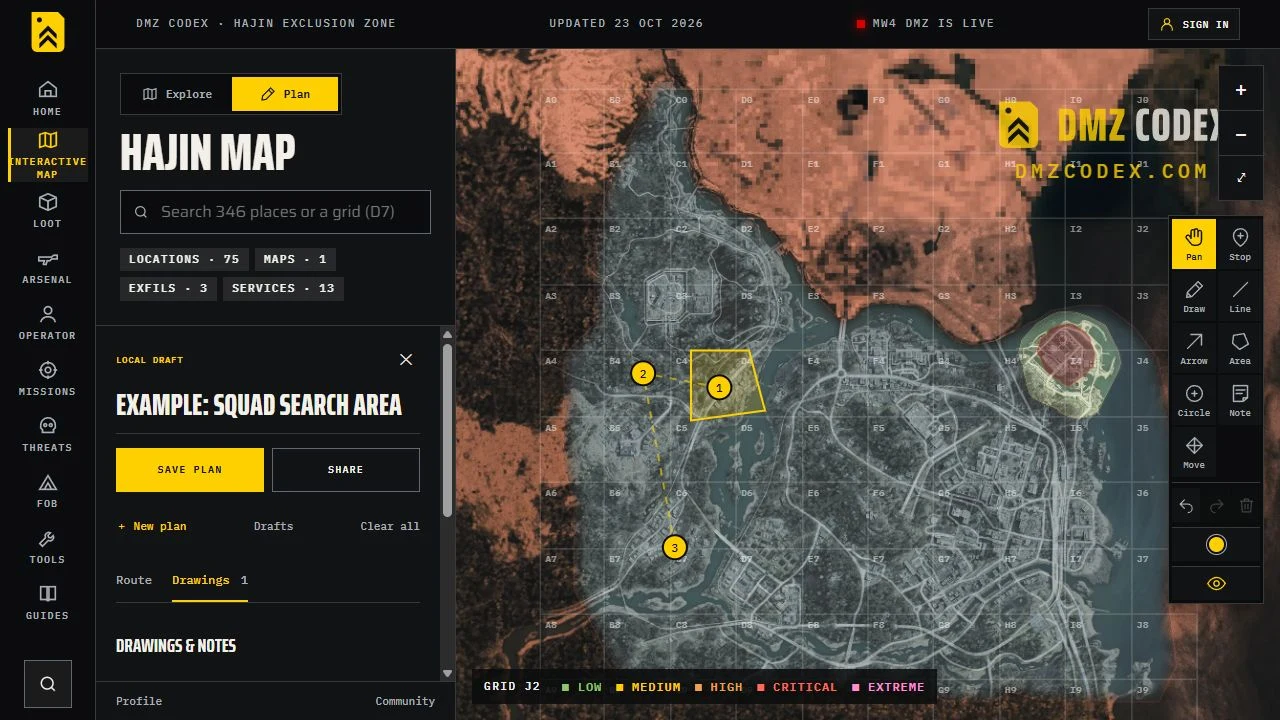
Use Route for stop instructions and Drawings for marks and map notes. In Drawings, select a mark to locate it, or use its Delete button. Undo and Redo handle recent edits. Clear all removes route content and drawings locally; it does not update an existing account save until you save the change.
A polygon is only as reliable as the instructions behind it. Label an approximate search area as approximate. Do not draw an exact-looking UAV radius or building boundary unless you have that information. In the Counterfeit example, Deadtown remains an area anchor because a precise objective boundary has not been mapped.
Keep the plan readable
Use Map places, the eye control in the editing toolbar, to hide or reveal background place markers while keeping your route and drawings visible. Find a place reveals map places again so you can choose another stop.
The Counterfeit example starts with unrelated markers hidden. In a custom plan, hide them after selecting your destinations. Keep notes short, use a small number of distinct colors and explain each color’s meaning in Squad briefing if it matters. A useful plan has a clear task, necessary stops and a fallback when an objective is unavailable.
Save drafts, share a link or download an image
A local draft and an account save are different. The planner keeps local edits in this browser when browser storage is available. Use Drafts to reopen distinct unsaved work. Local drafts do not sync to another device and can be lost if browser storage is cleared. If the storage warning appears, save the plan before leaving.
| Action | Account needed? | Result |
|---|---|---|
| Explore, add stops and draw | No | Work in the map on this device |
| Download image from Share | No | A PNG containing the map, route, briefing, stop labels and notes |
| Use this plan on a Codex example | No | An editable local copy |
| Save plan | Yes | Save the current plan to your account |
| Copy share link for your own plan | Yes | Save it as needed and create an unlisted viewing link |
| Publish to community | Yes | Make the plan public on Community plans |
| Make a copy of another player’s shared plan | Yes | Create your own account copy |
Open Share and choose the output you need. Send the link when your squad needs zoomable stops and notes. Download the PNG when you want an image for a message or another screen. A downloaded image is a snapshot: later edits do not change the file you already sent.
For a personal account plan, Copy share link makes it available to anyone with that link; Publish to community makes it public. Use Make private to revoke existing viewing links. If you make local changes after saving, save again to update the account version. Making a plan private does not also save those edits.
Existing Codex examples and other shared plans have their own viewing URLs. Their read-only Share action copies that viewing link. To edit someone else’s plan, use the relevant copy action first; your edits belong to your copy.
Find your account saves in My plans and public submissions in Community plans. The current editor supports up to 30 stops and 80 drawings per plan. Large freehand drawings also have point limits, so use a simple Area outline when a dense sketch adds no useful detail.
Use the map on a phone or with a keyboard
On a phone, open Places & filters in Explore or Your route in Plan to reach the side panel. Close the panel to work on the map, then reopen it to edit notes or change stop order. Pinch to zoom and use Pan when you want to drag the view. Selecting a drawing tool changes what a tap or drag does.
On desktop, drag to pan, use the mouse wheel or the + / − controls to zoom, and use Reset view to return to the starting view. With the map focused, arrow keys pan, + / − zoom, Home resets the view and Escape closes place details.
Planner shortcuts work while editing, outside text fields and dialogs:
| Key | Tool or action |
|---|---|
| V / S | Pan / Stop |
| D / L / A | Draw / Line / Arrow |
| P / C / N / M | Area / Circle / Note / Move |
| Enter while outlining an area | Finish the polygon |
| Escape | Return to Pan and cancel an unfinished outline |
| Ctrl/Cmd + Z | Undo |
| Ctrl/Cmd + Shift + Z | Redo |
| Delete | Remove the selected stop or mark |
In the Drawings list, select a mark and use the arrow keys to move it; hold Shift for finer steps. Tab moves between controls, and the Route/Drawings and layer-group tabs support keyboard navigation.
What the map can and cannot tell you
DMZ Codex is a reference map and route planner, not a live match feed. A marker identifies a recorded location or sighting. It does not guarantee the container is unopened, a vehicle is available, an exit is active or a marked enemy is there now.
Check marker wording before treating it as an exact position. Area, reported location and shaded search zones carry different certainty from a mapped service point. Threat labels describe the referenced area; they are not live readings of enemy or player activity.
Use your in-game Tac-Map for active objectives and extraction choices. Before committing to the last leg, check the exfil guide and your current deployment. If a pin looks wrong, use Tell us in Explore’s map information footer and include the marker name, grid and what needs correcting.
Open Explore and find your first place · Try the Counterfeit example
Quick questions
Do I need an account to use the DMZ interactive map?
No. Explore, local route planning, drawings and PNG image export are available without signing in. Saving to your account, creating a share link for your own plan and publishing to the community require sign-in.
Does the route planner calculate the fastest or safest path?
No. It connects your numbered stops in order. The lines do not account for terrain, entrances, enemy positions or live match conditions.
Can I use the Hajin map and planner on my phone?
Yes. Open Places & filters in Explore or Your route in Plan to reach the side panel. Close the panel to use the map, and choose Pan when you want to move the view instead of drawing.
Is the interactive map connected to my live DMZ match?
No. It is a reference map and planning tool, not live tracking. Check the in-game Tac-Map for active exits, objectives and current conditions.
How can I get an unfinished plan back?
Open Plan in the same browser and device. The Drafts button lists distinct unsaved local work that the browser has retained. Local drafts are not account saves and may be lost if browser storage is cleared.
What is the difference between sharing and publishing a plan?
Copy share link creates an unlisted link for a saved personal plan. Publish to community makes the plan public. A local draft has no shareable account link until it is saved.
Spotted something wrong? Send a correction.