MW4 DMZ Hunter: find and climb a Lieutenant Hunt tower
Climb the tower, download the intel and check both objectives. A boss kill is a separate decision.
To complete Hunter, climb a Lieutenant Hunt tower and use the laptop on its upper platform at the Locate Lieutenant prompt. Wait for the download and check both Order objectives. One demonstrated tower is on the hill northwest of Wolves Stadium, marked in F7 in the recorded run. Killing the revealed Lieutenant is not required for Hunter.
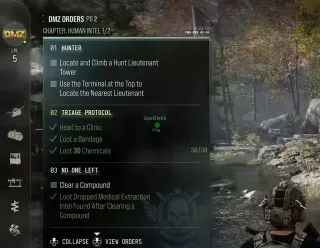
- Hunter belongs to Human Intel part 1
- Route example: hill northwest of Wolves Stadium
- Upper platform: use Locate Lieutenant
- Two Order checks; no Lieutenant kill requirement
Hunter finishes when you climb the tower and use its terminal to locate a Lieutenant. The Hunter Order has two checks. The boss fight that can follow the download is a different activity.
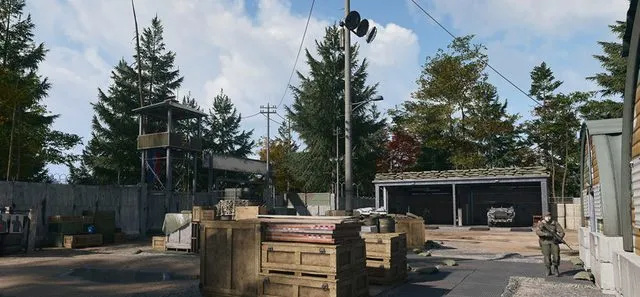
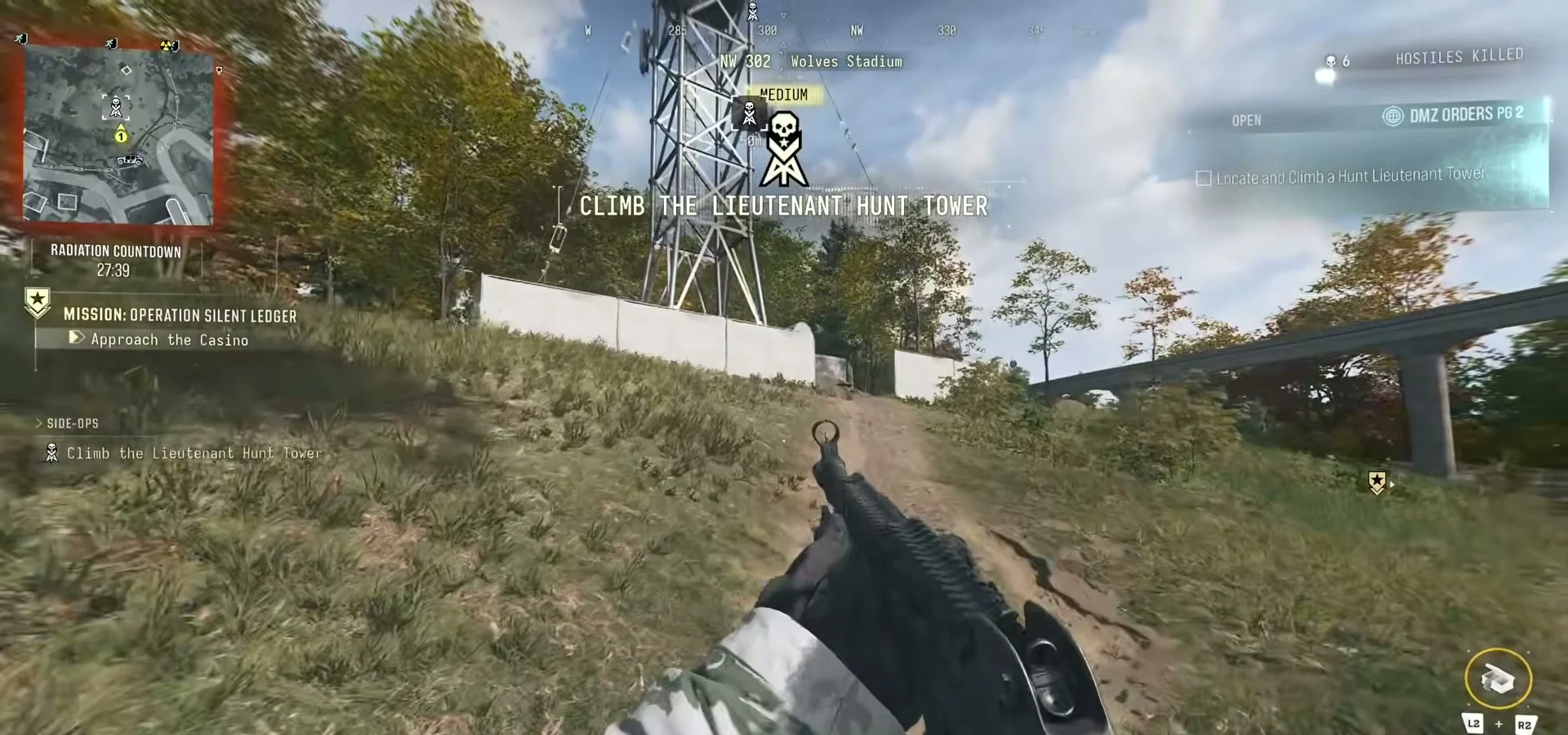
This walkthrough follows the tower beside Wolves Stadium in a recorded run. The header image shows its uphill approach at 0:18; the images below show the map, terminal and completed Order.
Find the Lieutenant Hunt tower
Open the Lieutenant Hunt layer on our map to plan a stop, then find the Lieutenant Hunt marker on your current Tac-Map. Look for the skull on a communications-tower icon and confirm the service name when you select it.
The demonstrated tower stands on a hill northwest of Wolves Stadium. The selected marker reads F7 in the footage, between the stadium and the Cheonwang Peak Array area.

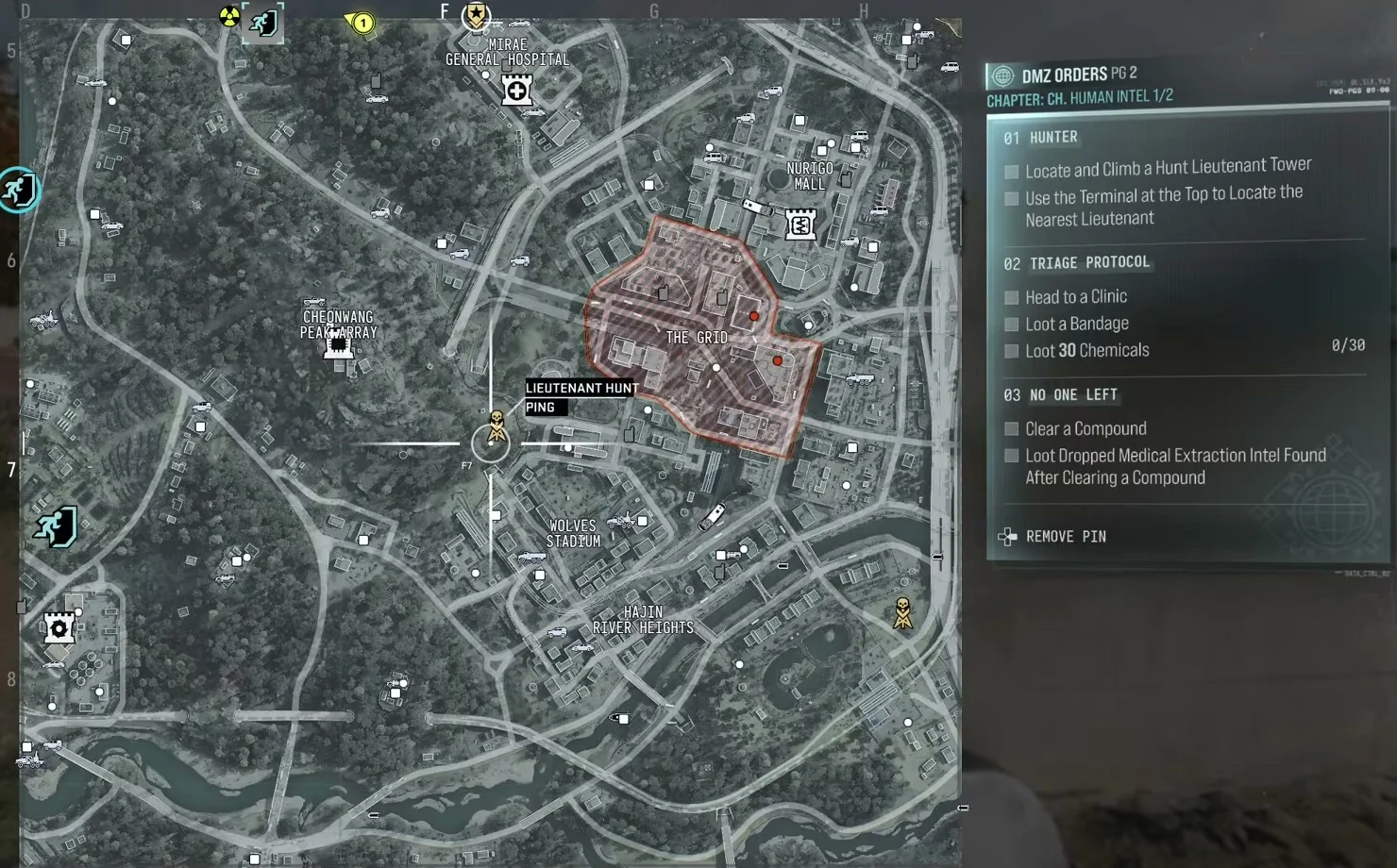
Choose the Lieutenant Hunt service for this task. A UAV Tower reveals nearby enemies, while Triangulation asks for transmitter placements; those interactions do not replace Hunter’s laptop objective. The tower and SAM services guide explains the differences.
Follow the hill path and climb
At the Wolves Stadium example, follow the dirt path uphill toward the tower’s walled enclosure. The opening is to the right of the mast as you approach. The on-screen activity reads Climb the Lieutenant Hunt Tower.
Enter the enclosure, find the tower’s ladder and climb to the upper platform. Check that Locate and Climb a Hunt Lieutenant Tower has registered. Reaching the base is not the same as completing the climb.
Before starting up, check the ground around the tower and your route back down. You will be exposed while climbing; the recorded approach does not guarantee an undefended tower in your deployment.
Use the laptop at the top
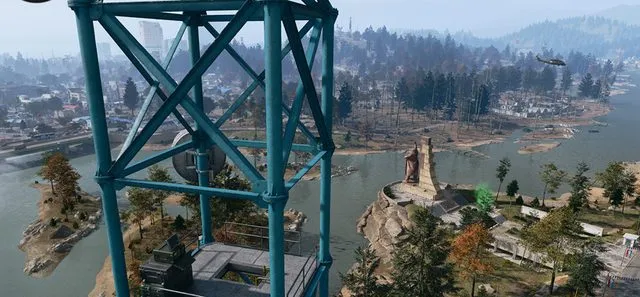
On the platform, find the laptop sitting on the stacked radio terminal. Face it and use the Locate Lieutenant prompt. Complete the interaction and wait for the intel download.
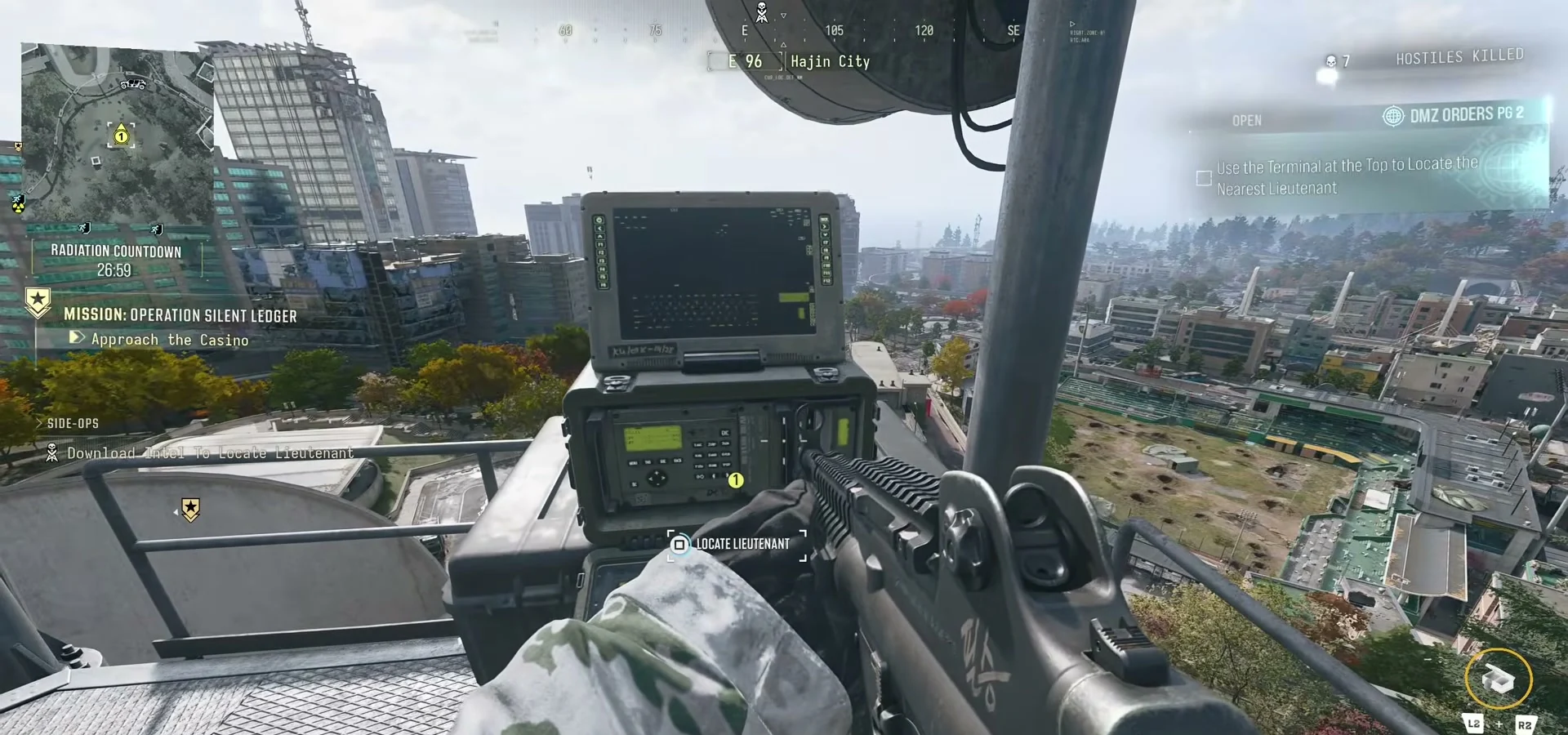
Check Use the Terminal at the Top to Locate the Nearest Lieutenant afterward. Standing beside the laptop without completing its interaction leaves this objective unfinished.
If you are at the top but cannot find the right prompt, check that the marker says Lieutenant Hunt, then look for the laptop pictured above. Do not substitute a UAV activation or a radio-transmitter placement.
Confirm Hunter is complete
Open your Orders and check both Hunter lines. In the recorded run, both are ticked while a new Side Op says Reach the Lieutenant’s Location.
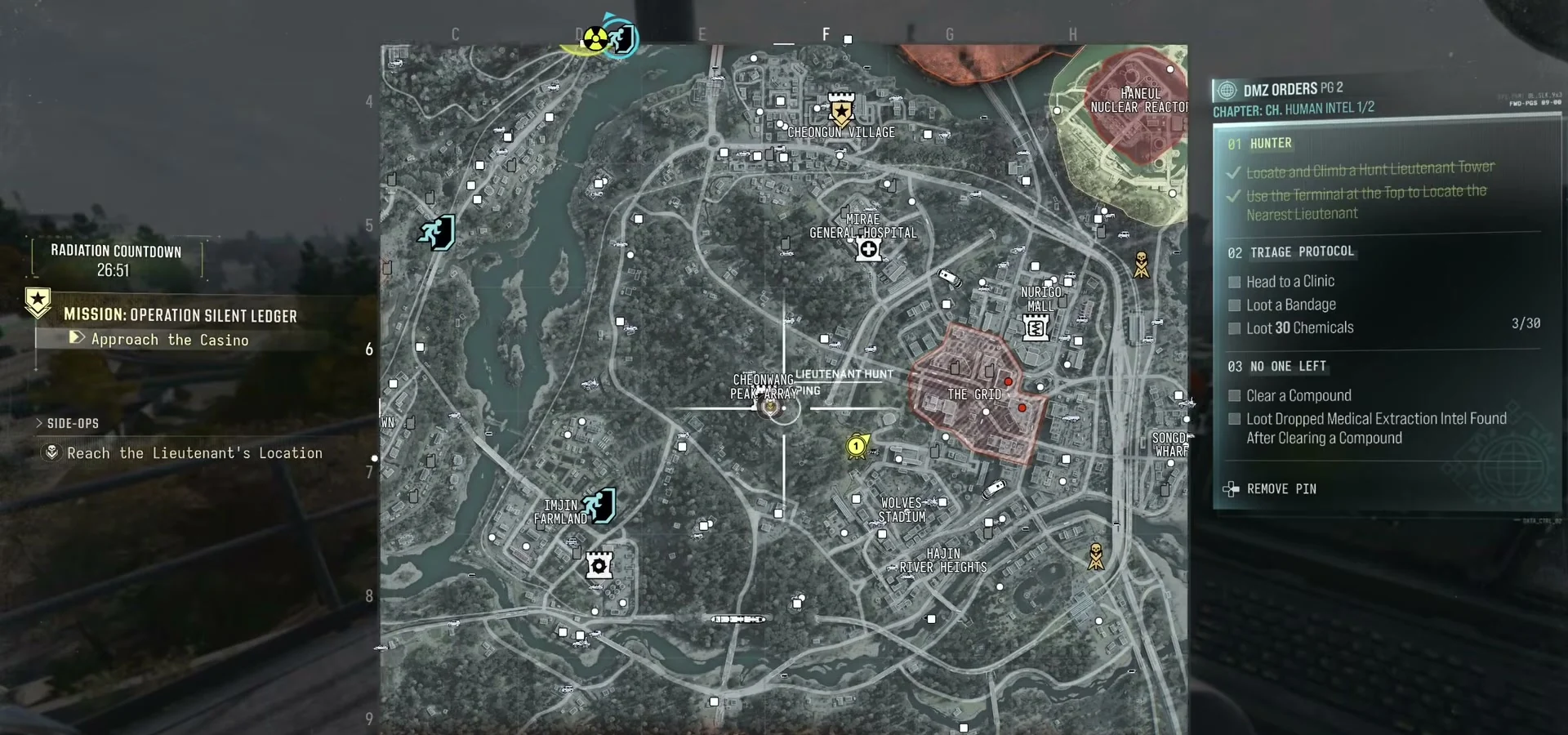
That distinction matters: you do not need to kill the Lieutenant to finish Hunter. You can continue the hunt or return to the other Orders on your page. If you choose the fight, use the revealed area on your own Tac-Map; this example does not guarantee the same target on every tower visit. See the Lieutenants and Boss Board guide before committing.
For the rest of Human Intel part 1, use the Triage Protocol Clinic guide and No One Left Compound guide. The Orders walkthrough keeps the full page checklist together.
Mentioned in this guide
Spotted something wrong? Send a correction.