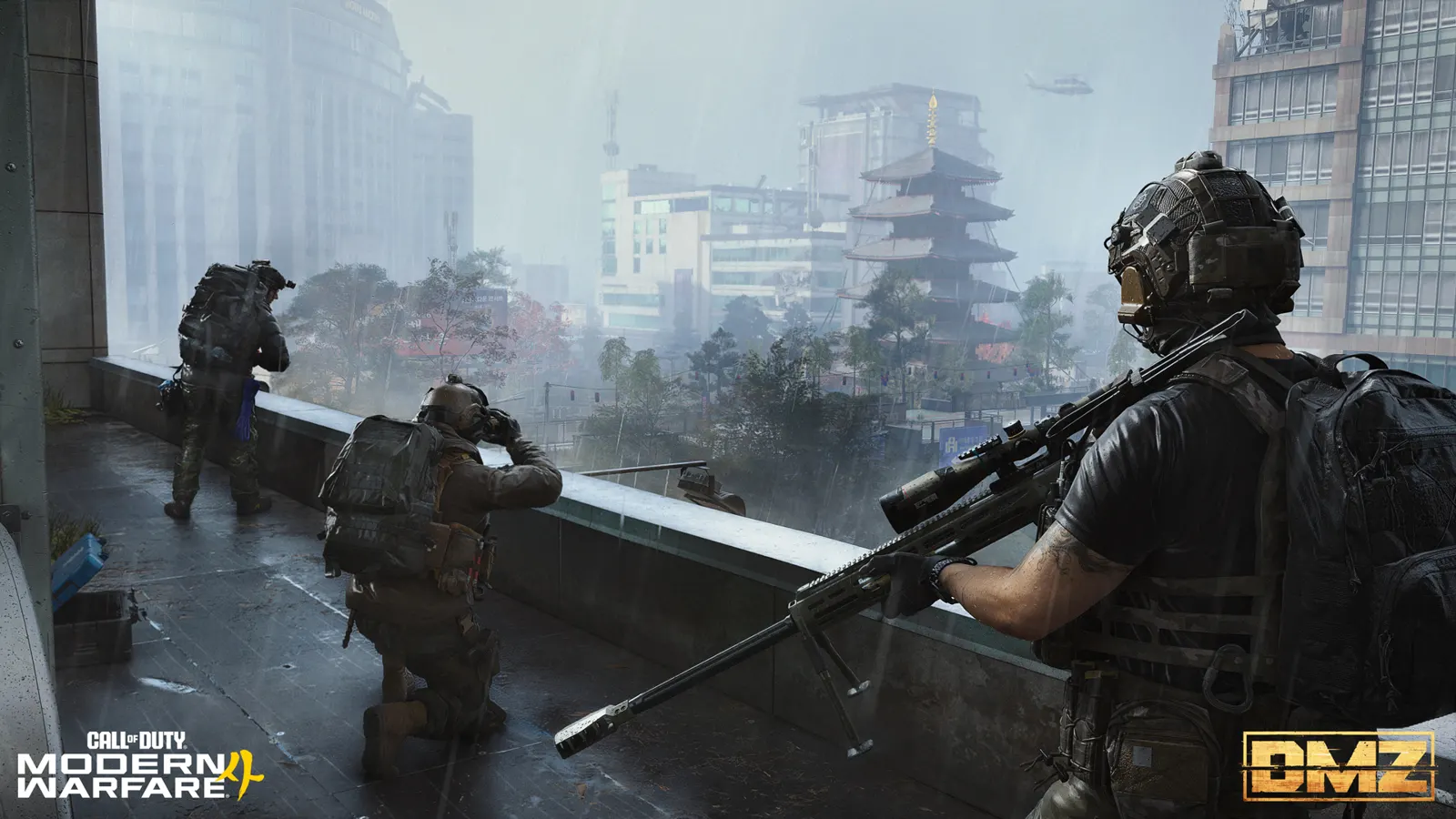
MW4 DMZ setup: installation, storage and BO7 settings
Get your game files and settings ready before deploying into Hajin.
Keep DMZ and required base/shared files in Call of Duty’s Manage Files menu. Remove only optional modes you do not use and read the current size on your device. To carry over BO7 settings, open Settings → Account & Network → Online → Import Settings before tuning your MW4 controls and graphics.
- Keep DMZ and required shared files
- Use the in-game Manage Files menu
- Check current sizes on your device
- Import compatible BO7 settings before tuning MW4
Prepare the files first, then your settings. Keep DMZ and its required shared content installed. If you want to carry over BO7 controls, import them before spending time adjusting the same values in MW4.
| What you need to do | Start here |
|---|---|
| Free space without removing DMZ | Review installed modes in Manage Files; retain DMZ and required base/shared content. |
| Check a quoted download or install size | Read your device’s current content manager and selected packs. |
| Bring over compatible BO7 settings | Use Import Settings, then check the values that changed. |
Before removing a mode, read its actual name in the current manager. Before importing settings, keep screenshots of any MW4 values you already tuned. File management and settings import solve different problems: importing controls does not install a missing mode.
Use the in-game content manager
- Launch Call of Duty and open Menu.
- Select Manage Files, then Manage Files again.
- Open the relevant game/content tile and inspect its installed modes.
- Remove only a mode you do not use, such as Campaign or Multiplayer, while keeping DMZ and its required files.
This is the official recommended route. Platform content managers can group files differently.
Other reported platform routes
| Platform | Where to inspect optional content |
|---|---|
| Battle.net | Call of Duty → gear icon → Modify Install → Modify Install; review selections, then confirm the update. |
| Steam | Library → Call of Duty → Properties → DLC; review the mode before changing its checkbox. |
| PS5 | Call of Duty tile → Options → Manage Game Content; preserve shared packs. |
| Xbox Series X|S | My games and apps → Call of Duty → Manage game and add-ons; inspect game items. |
Menu names and pack grouping can vary. These reported alternatives do not establish a Switch 2 removal procedure.
Read the current size on your device
October 19 PC screenshots were historical install samples, not today’s DMZ requirement. Shared files also mean adding pack labels together can exaggerate the space recoverable. Read the current manager and leave room for updates.
Check PC requirements and game access separately. A content selection is not proof that your hardware or game access meets the requirements.
Import your BO7 settings
Open the import screen
- Open Settings, then Account & Network.
- In Online, select Import Settings.
- Choose Import From Previous Title and confirm the BO7 import.
A notification may also offer Go To Import. If it is absent, use the settings path above. Import before adjusting your MW4 preset; matching values can replace changes you already made.
Check what changed
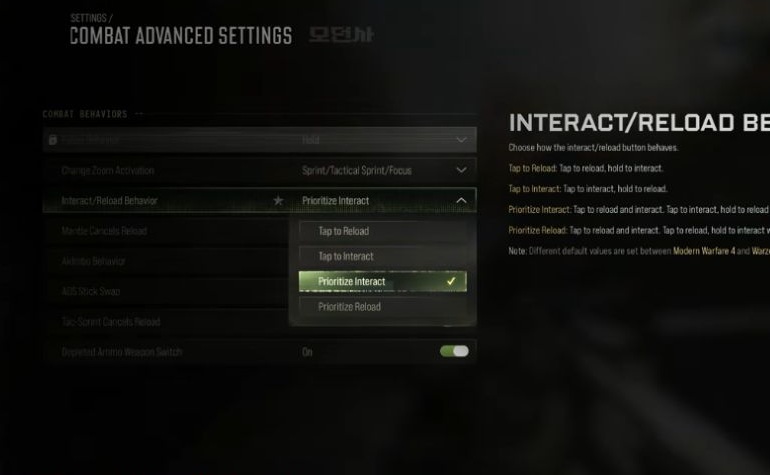
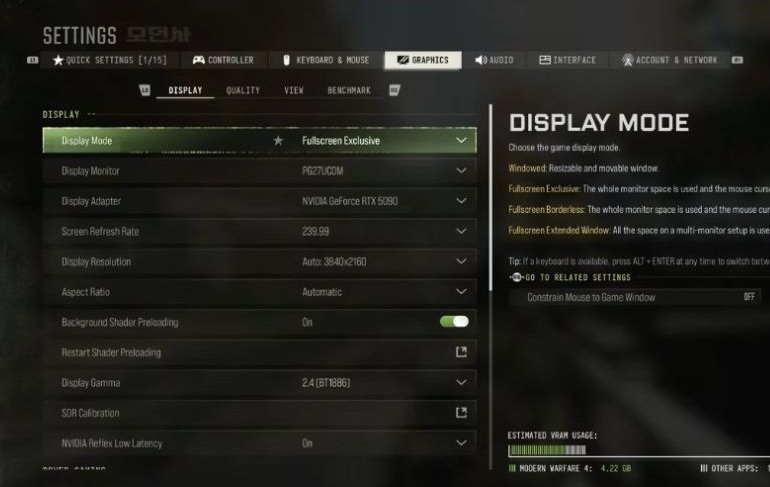
Compatible keybinds, graphics and supported options can transfer. Matching MW4 values are replaced; conflicting gameplay options can return to defaults. Recheck sensitivity, interaction/reload behavior and your graphics baseline before deploying.
The import applies to the device in use. Repeat it on a second PC or console if you want its compatible settings there too; importing once does not establish the settings on every device.
If you already like your MW4 setup, compare it with your saved values before confirming another import. For a control you cannot find or an option that did not carry over, inspect the current MW4 menu rather than assuming every BO7 option has a matching setting.
Finish your setup before the first run
Use this final check after managing files or importing settings:
- Confirm that the current content manager still lists DMZ and its required files.
- Check your chosen input device, sensitivity and interaction/reload behavior with the controller and looting settings guide.
- On PC, use the performance settings guide to compare a measured graphics baseline instead of changing several settings without checking the result.
- Once the setup is ready, use the beginner deployment checklist for gear, an achievable first objective and the extraction decision.
Quick questions
Should I delete the base game or shared packs?
Keep the required base/shared files and DMZ. Remove only content identified as an optional mode you do not use.
Is an old per-mode size a current download promise?
No. Platform, selected packs, shared data and updates change the actual size.
Does importing keep my current MW4 changes?
Matching values can be overwritten. Record your preferred settings before confirming.
Does it import every BO7 option?
Only compatible options transfer. Check gameplay settings afterwards because conflicts can reset them.
Spotted something wrong? Send a correction.