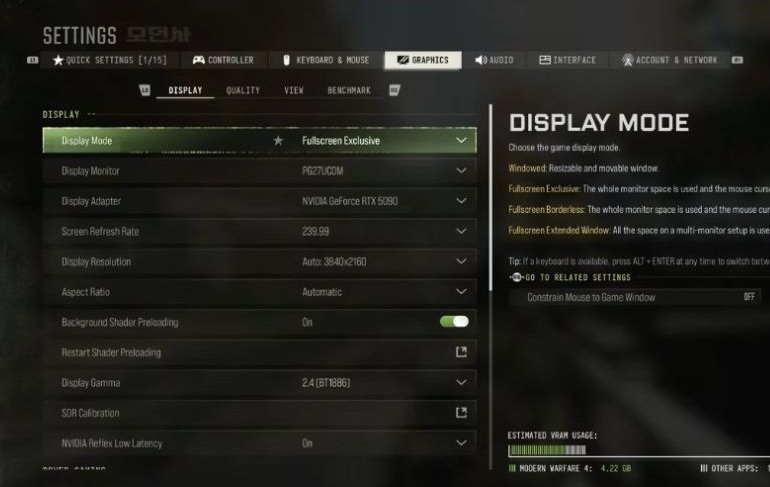
MW4 DMZ PC settings: tune performance and visibility
Save a baseline, test one setting family and check both motion and aiming.
Start from your current working configuration, record a benchmark, then compare display, scaling and visibility changes separately. MW4's benchmark is a Multiplayer sequence; confirm the result in a low-cost DMZ run before taking valuable equipment.
- The benchmark runs a Multiplayer sequence
- Upscaling and frame generation are separate comparisons
- World and Weapon Depth of Field have separate settings
- A personal preset is a starting example
Save the settings that already let you play before changing them. A useful preset is one you can compare and recover. This guide works through actual settings and a test routine; use the PC requirements guide for hardware, storage and security prerequisites.
Bringing settings from BO7? Import them before tuning MW4, then repeat the checks below.
Record a baseline you can repeat
Write down output resolution, display mode, refresh rate, scaling choice and any frame-generation setting. Keep a screenshot of the rest. Finish pending game and graphics-driver updates before comparing configurations so the software does not change halfway through your test.
Run the built-in Benchmark Tool and keep its results. The official tool uses a simulated Multiplayer sequence and reports performance information, including CPU, GPU and input latency. It gives you a repeatable comparison, rather than a forecast for every fight in Hajin.
Choose the problem you actually notice: uneven motion, difficulty reading moving enemies or insufficient responsiveness. A higher average frame counter alone does not tell you whether that problem improved.
Compare display and scaling separately
- Check the display mode, selected monitor and refresh rate shown by your game. Record them before changing one.
- Compare a scaling option supported by your graphics card. Official options include DLSS 4.5, FSR Redstone and XeSS 3; availability still depends on the system.
- Keep output resolution and the test sequence unchanged while comparing image quality.
- Inspect moving foliage, distant silhouettes and the edge of an aimed weapon. Increase sharpness only when the result helps you read the scene.
- Test frame generation separately, where available, and compare aiming response as well as the displayed frame rate.
Do not combine a resolution change, new upscaler and new graphics preset in the same trial. If you cannot explain which change helped, return to the saved baseline and repeat one comparison.
Keep visibility changes focused
MW4 separates World Depth of Field from Weapon Depth of Field. Compare each with the view you prefer while aiming. The official Enhanced FOV option expands the edges without changing center FOV; it is a separate PC feature from simply choosing a wider ordinary FOV.
A personal preset example uses DLSS Quality, frame generation off, Normal textures and Very Low shadows. This is not a measured recommendation for every GPU. Test each change on your own system; a universal crash or visibility cause remains unconfirmed.
Try one visibility change, look across the same scene and aim through your usual optic. Keep the configuration that makes targets and nearby cover readable without introducing motion you find distracting.
Check the result in DMZ
Take a replaceable kit on a Free Loadout recovery run. Compare an indoor room, outdoor movement and a normal encounter. Note whether the original problem returns when the scene gets busy.
Record the new result beside the baseline. Keep, revise or roll back the change before testing another family. Avoid judging two settings from unrelated matches with different weather, routes and fights.
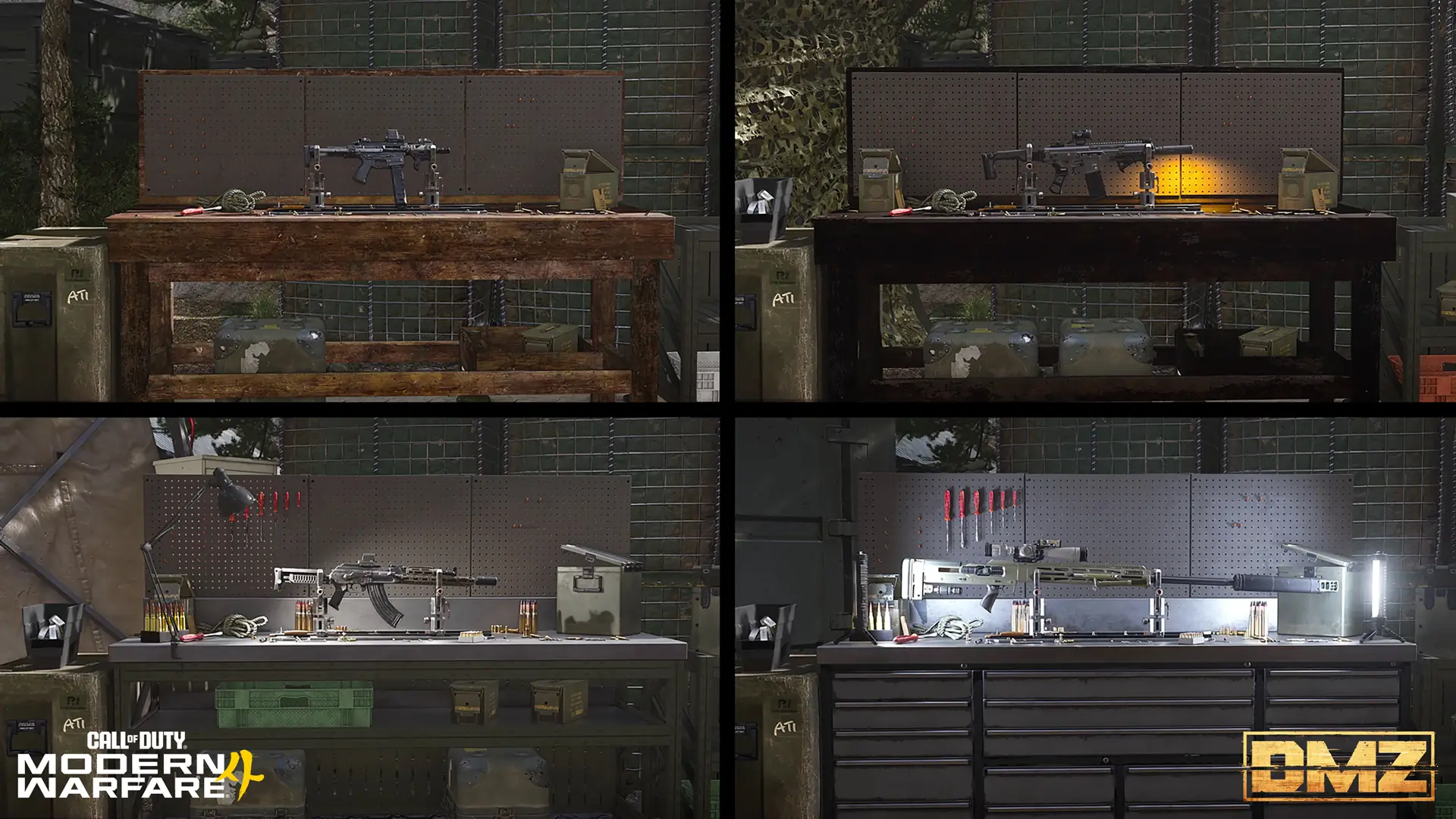
The Gunsmith guide explains the equipped build and Firing Range check. An optic change can alter the view you are judging even when graphics settings stay the same.
After an update or a new problem
Retest the known baseline first. A changed driver, game update or new display can make an old comparison less useful. Do not treat every hitch as proof that one texture setting is broken.
Advanced Shader Delivery is an official preparation option on supported PC platforms and uses the Xbox PC app. It is separate from choosing graphics quality. Keep the last usable configuration until the next comparison gives you a reason to replace it.
Quick questions
Will these settings guarantee a particular FPS in DMZ?
No. The official recommended target and benchmark concern Multiplayer. Hajin conditions and your hardware still need a separate comparison.
Which upscaler should I select?
Compare a supported option on your graphics card at the same output resolution. Inspect moving edges and aiming as well as the reported performance.
Should I copy an entire personal preset?
Use it as a personal example, not a universal recommendation. Copying several changes at once makes their individual effects harder to assess.
Does Enhanced FOV simply change my center FOV?
The official description says it widens the edges without changing the center FOV. Compare it separately from the ordinary FOV setting.
Is the Xbox PC app required just to play on PC?
The official PC article requires it for Advanced Shader Delivery on supported platforms, rather than presenting it as a requirement for every PC launcher.
Spotted something wrong? Send a correction.