MW4 DMZ HUD and Tac-Map: read your squad, supplies and objectives
Check the relevant panel, confirm the current state and choose the next action.
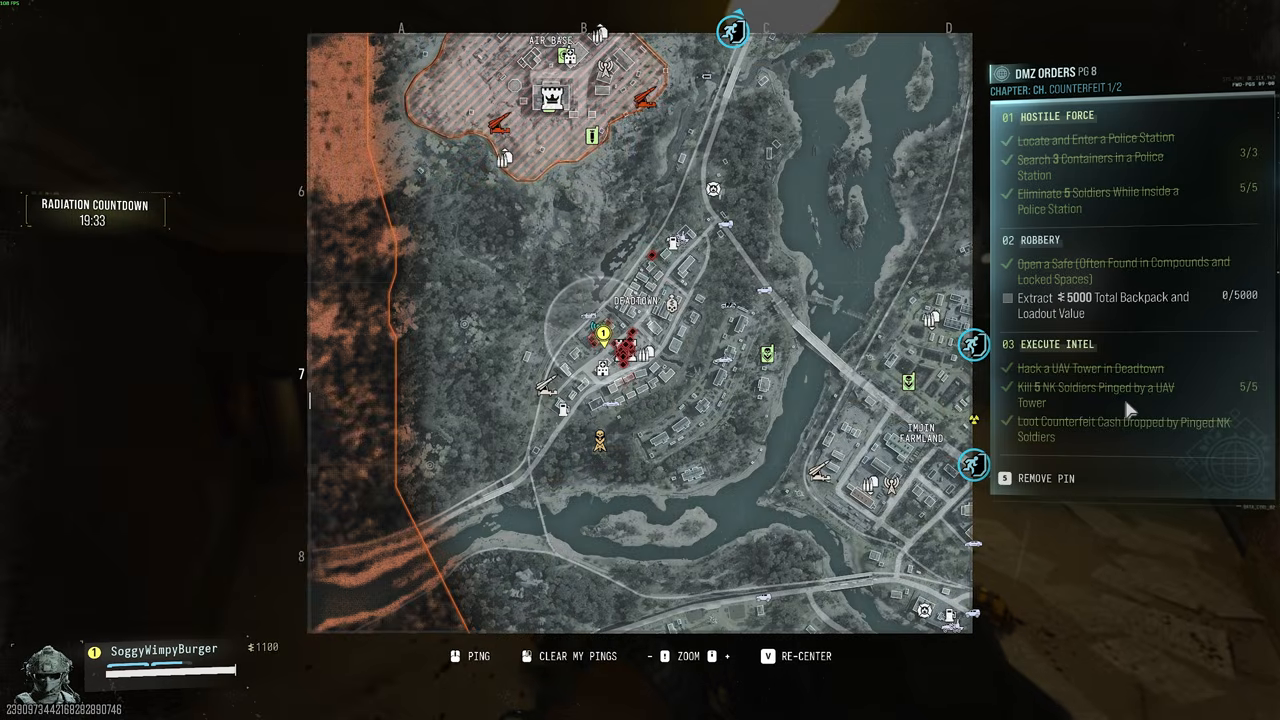
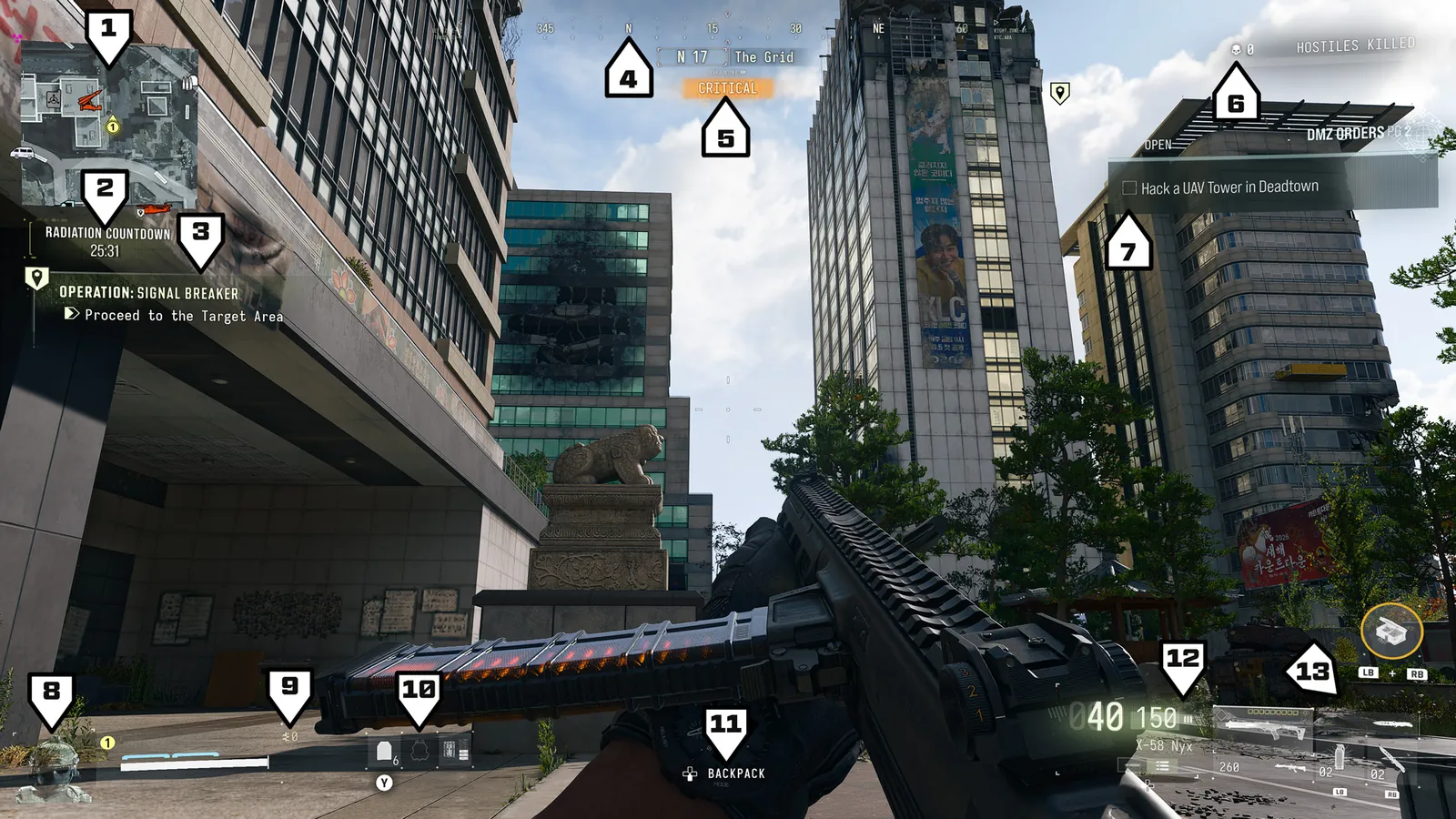
Use the HUD for immediate ammo, equipment, squad and objective information, then open the Tac-Map for the current deployment, pings and DMZ Order progress. Story Mission and Op objectives occupy a different panel from Orders. The Time Remaining display concerns the radiation storm, not a universal helicopter countdown.
- Story Mission and Op objectives are separate from DMZ Orders
- Squad status includes downed, wounded and temporary-health states
- The weapon display separates loaded and reserve ammunition
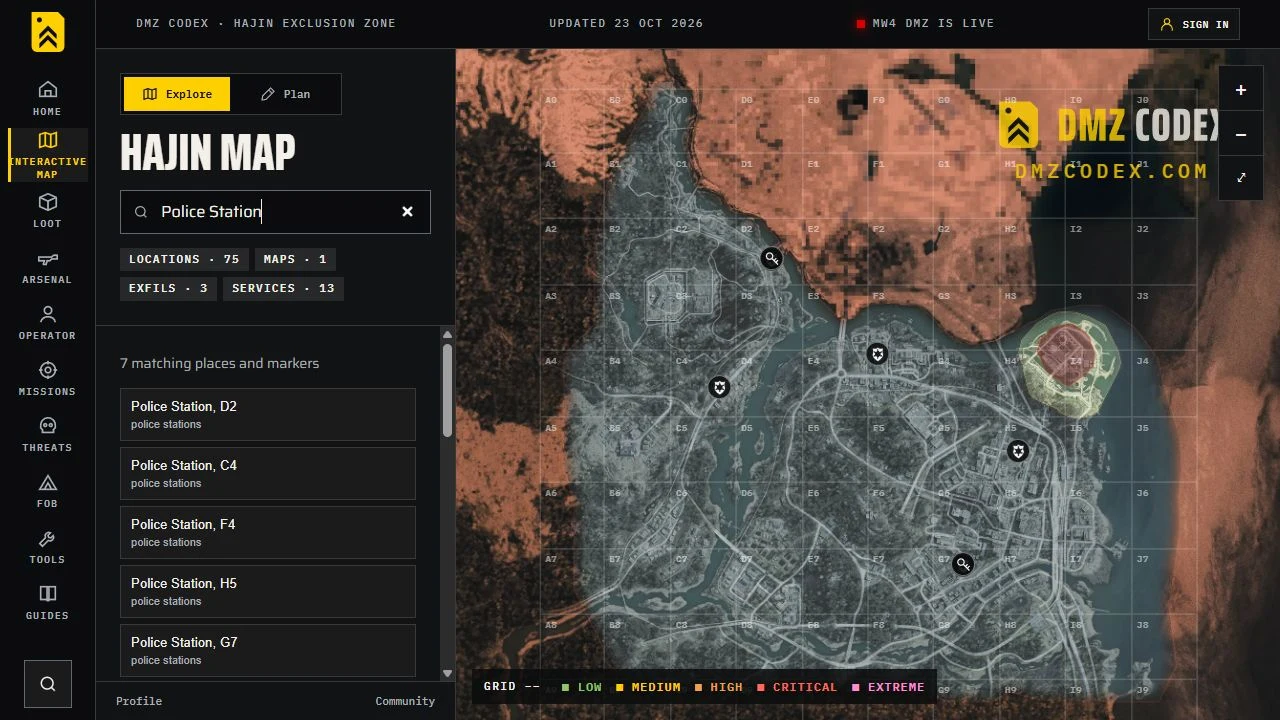
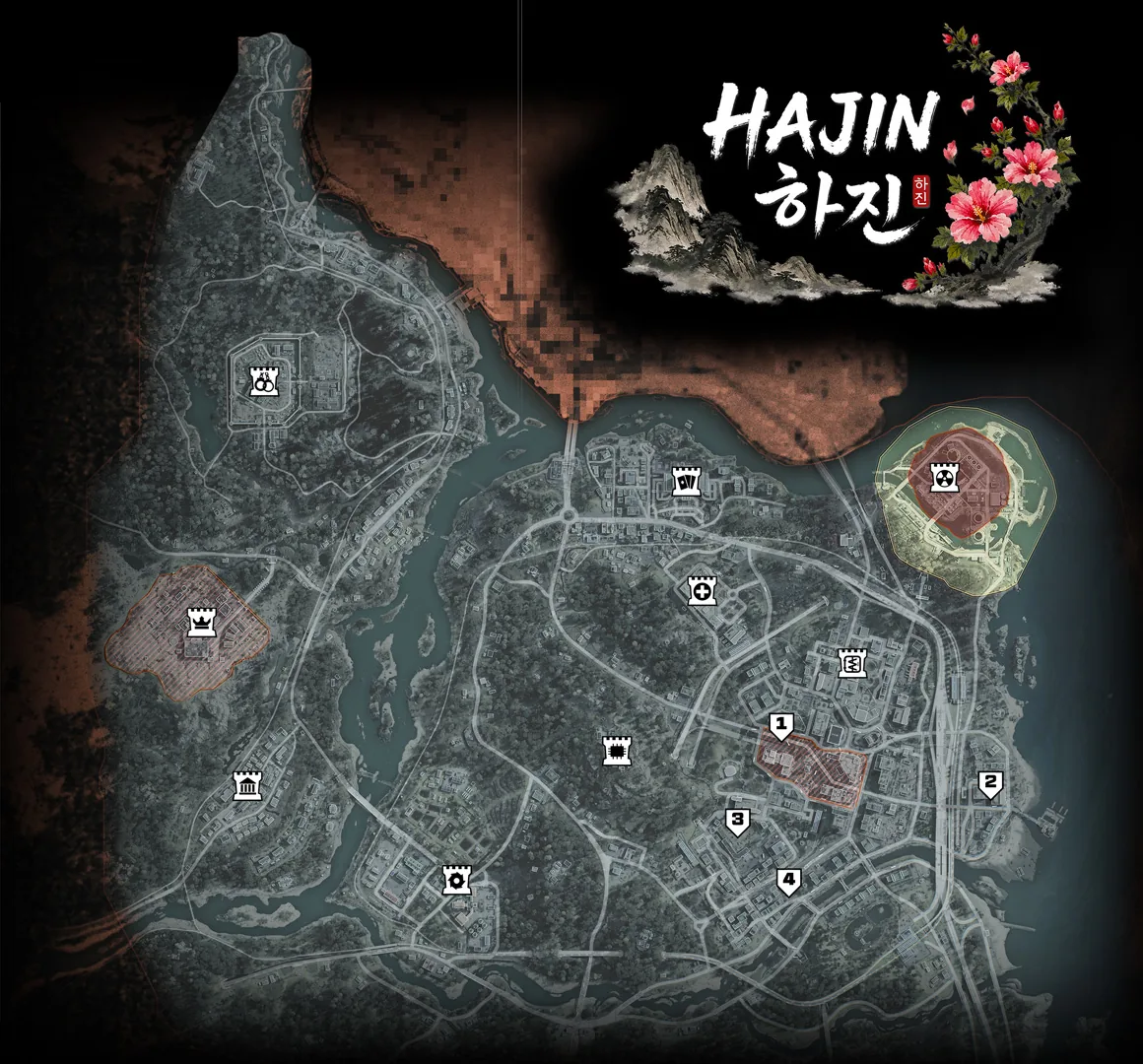
- The live Tac-Map and a website reference map serve different jobs
Read the panel that answers your immediate question. The ammo display tells you what the weapon has left; the squad panel tells you who needs attention; the Tac-Map shows the current deployment and your Order progress. Opening every menu at once is less useful than knowing which check you need before the next move.
Orient yourself with the compass and threat label
The compass gives your heading and names the POI you occupy. Confirm that name when an objective specifies a location: being close to a reference-map pin does not by itself establish that you have reached the named area.
Keep the threat label separate from player detection. It describes the local hostile threat response, rather than a headcount of rival Operators. The Hostiles Kill Count is another distinct display: filling that meter can bring a Hunt Squad and mark you for death. Do not treat either indicator as a substitute for watching the approaches. Use the Hajin area guide for destination planning.
Separate the objective panels
Story Missions, Dynamic Ops and Side Ops appear on the left side of the HUD. DMZ Orders appear on the right and can also be inspected in the Tac-Map. These tasks can share a location without sharing the same completion condition.
Before an interaction, read the exact action: activate, collect, eliminate or extract. Afterward, check the corresponding counter or completion state. A mission update on one side is not a reason to stop checking an unfinished Order on the other. If an action seems missing, start with the objective checks rather than repeating unrelated interactions.
Check squad state before choosing how to help
The squad panel identifies teammates by portrait, number and color. It also carries health, armor and state information, including downed, wounded and death states. Temporary health from pain medication while wounded is part of that display too.
Use it to frame the next decision: identify the teammate, check the state and agree on the immediate need. A standing teammate can still be wounded. A downed teammate presents a different problem from someone missing plates. The healing guide explains the treatment choices; the HUD helps you identify which situation you are looking at.
Read the equipped item and its reserve
The weapon display separates loaded rounds and reserve ammunition, and identifies firing mode, rarity and attachments. The second-weapon display has its own ammunition information. Check the gun you plan to use next rather than relying on the other weapon’s reserve.
Equipment indicators show available Tactical and Lethal quantities, the equipped Field Upgrade and Fire Support. To change a carried item, open the Backpack, select suitable equipment and move it into the Loadout. The official menu instructions include swapping Tactical, Lethal and Ammo/Armor Box items. Confirm the equipped slot after the change; a spare in the bag and the active item are different states.
Use the Tac-Map for a concrete action
- Open the in-game Tac-Map and locate your current position. Move the cursor and zoom until the destination is identifiable.
- Use the grid for a general area callout. Letters run west to east and numbers north to south; a grid square is broader than a doorway.
- Place a ping on the destination or current objective so teammates can identify it. Clear an outdated ping when the plan changes.
- Inspect the Orders panel and its progress. A location-based Order can provide an objective marker that you can ping for the squad.
- Recheck the current exit and radiation situation before leaving the area. The HUD’s Time Remaining concerns storm intensification, not one universal helicopter countdown.
The website map planner is useful before a run. It cannot display the active state of your current match. Keep the route idea, then choose the actual destination using the live Tac-Map.
Return to the normal view with one next step
Finish the check by identifying what you will do next: reach a marked objective, switch the equipped supply, help a named teammate or head toward an active exit. Use the Ping Wheel for visual squad communication when speaking is unavailable or unsuitable; truce and assimilation are separate actions covered in their own guide. Keep the next required objective visible and check its result before changing the plan again.
Quick questions
What does Time Remaining mean in DMZ?
It shows the time until the radiation storm intensifies. It is not one fixed countdown for helicopter arrival, boarding and departure.
Why do I see objectives on both sides of the HUD?
Story Mission, Dynamic Op and Side Op objectives appear on the left, while DMZ Orders appear on the right and in the Tac-Map. Read the exact task before deciding which action advances it.
Does an area threat label tell me how many rival players are nearby?
No. It describes the area’s hostile threat response, not a count of human Operators. Keep that separate from squad status, pings and any actual detection information.
Can I change equipment without returning to the FOB?
The Backpack menu lets you review carried equipment and move suitable items into the Loadout, including swapping Tactical, Lethal and Field Upgrade items. Check the equipped slot after the change.
Can the website map tell me which exfil is currently active?
A reference map helps plan areas and landmarks. Use the current in-game Tac-Map and extraction interaction for the live deployment state.
Spotted something wrong? Send a correction.