MW4 DMZ Recon Drone: scout, park and resume piloting
Scout from cover, leave the drone scanning and check the return-to-pilot prompt.
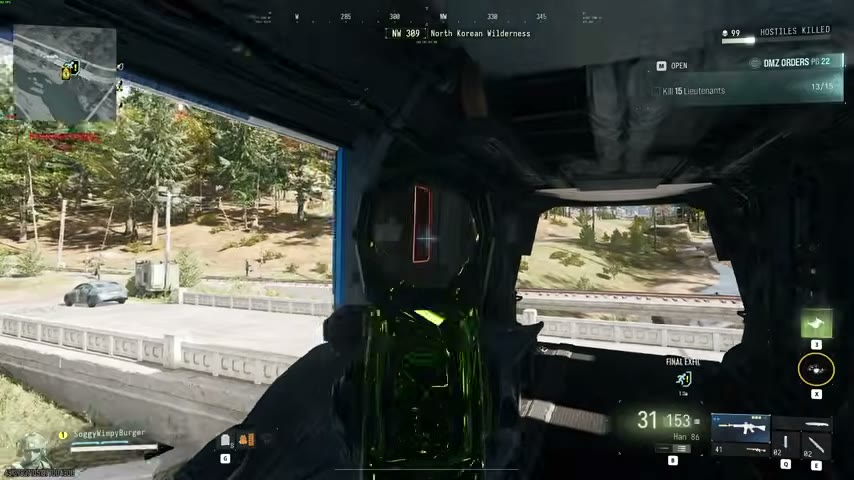
Equip a Recon Drone as your Field Upgrade and launch from cover. Use the altitude and Thermal controls to inspect your route. Park Drone & Exit returns you to your Operator; check Scanning for Targets and Pilot Recon Drone for the current state. An empty scan does not guarantee safety.
- Recon Drone is a remote-controlled Field Upgrade
- Flight HUD shows altitude controls, Thermal and a fuel gauge
- Park Drone & Exit returns you to the Operator view
- Pilot Recon Drone is offered while the parked drone scans
Scout the approach with a Recon Drone before moving your Operator into it. Launch from cover, inspect the route and use PARK DRONE & EXIT to return to your weapon. Check the scanning state and pilot prompt before relying on the parked drone for further information.
Prepare the Recon Drone, not another drone
The Recon Drone is a remote-controlled Field Upgrade with manual and automatic marking capabilities. It is different from a Seeker Drone and from the Combat Drone in Fire Support. Match the full item name in your inventory.
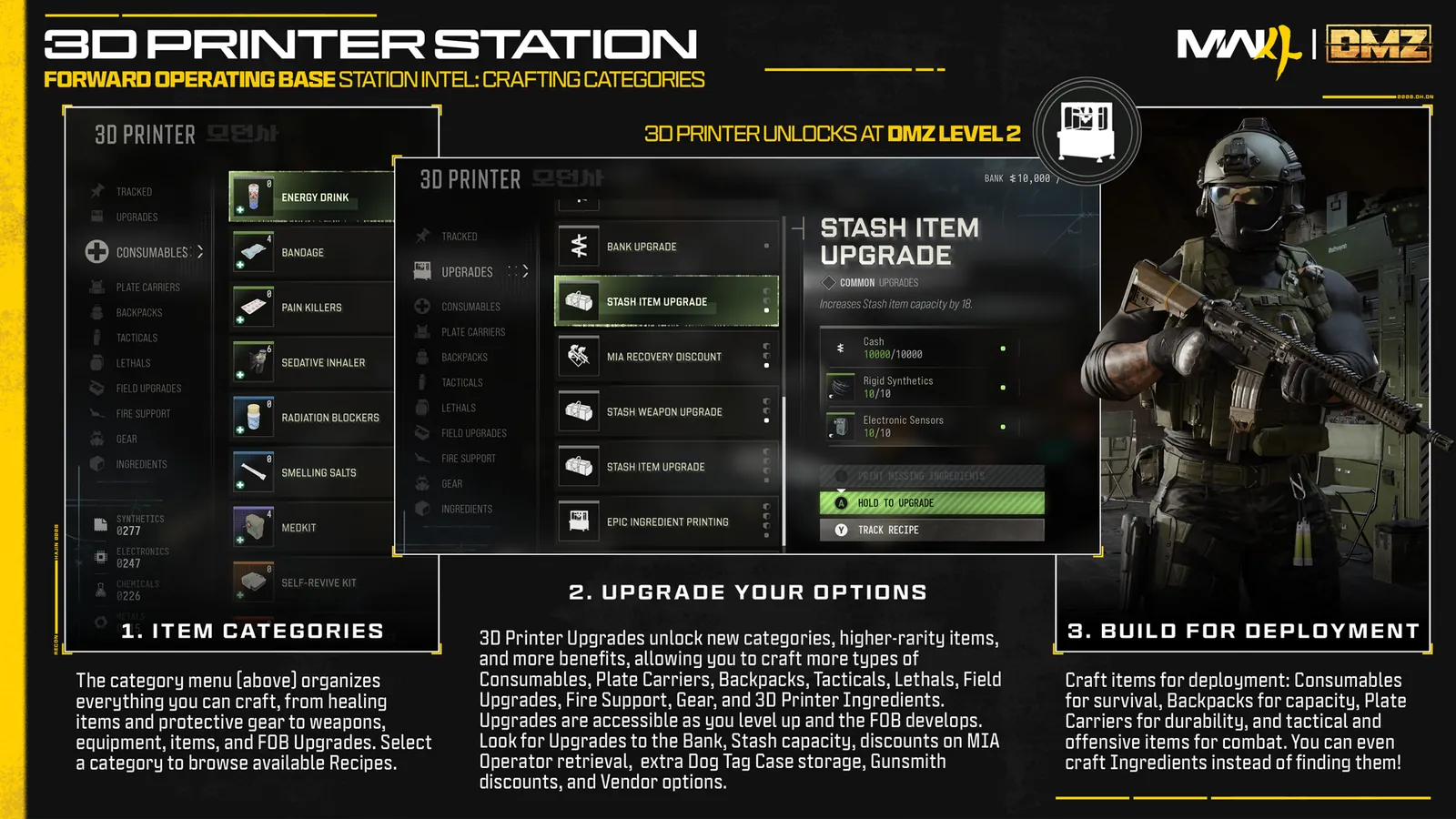
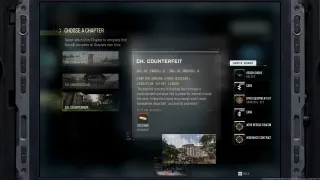
The captured Recon Drone recipe lists 30 Metals and 3 Electronic Sensors. The preceding Counterfeit Order page rewards its recipe; check the actual page reward and Printer state if it is unavailable. Opening the Field Upgrades category does not unlock every recipe inside it.
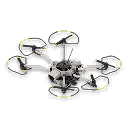
Equip the device before entering the area you intend to scout. If you carried a spare item in the Backpack, move the needed equipment into the Loadout and confirm the equipped Field Upgrade. Use the Printer guide for a missing unlock or material shortage.
Launch from a position you can return to
Choose cover for your Operator before opening the camera. Stay away from the immediate exfil boarding point while setting up the scan. Use the Field Upgrade deployment prompt for your platform and control settings.
After launch, confirm RECON DRONE on the camera HUD. This matters when several drone items or an unrelated Fire Support item are in your inventory. Establish where the Operator is waiting before flying toward the route you want to inspect.
Read the flight controls and live limits
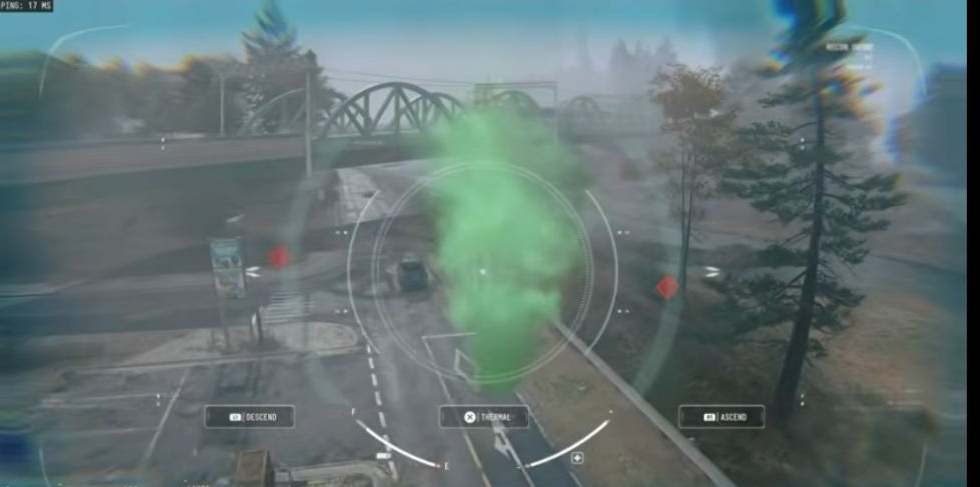
The camera HUD presents DESCEND, THERMAL, ASCEND and PARK DRONE & EXIT. Use the altitude controls to change the viewpoint and the Thermal option to inspect its available view. Follow the labels on your own HUD rather than copying another platform’s button icons.
Watch the F/E fuel gauge and any TARGET OUT OF RANGE warning. Reposition when a target is out of range and confirm that your mark registered. Exact flight duration and marking distance remain unverified, so plan around these live indicators.
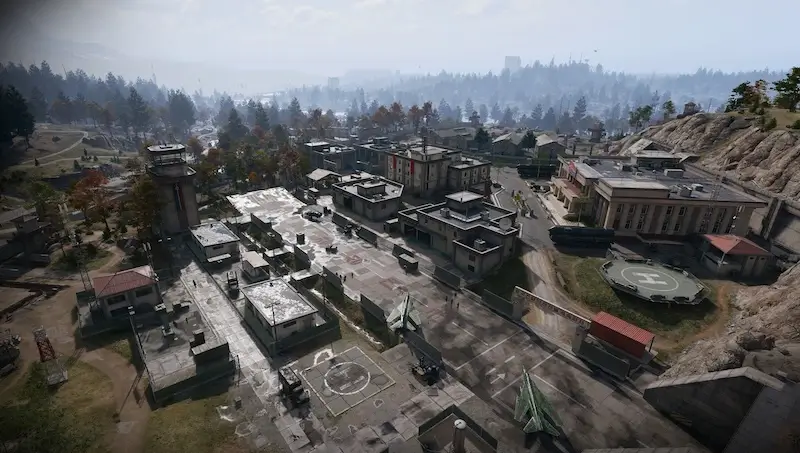
Inspect the exfil smoke, nearby buildings and approach routes. Use red target diamonds to identify threats, but keep checking unmarked areas. An empty scan does not guarantee safety; complete player detection and through-wall coverage are unverified.
Park and exit, then find the pilot prompt
Use PARK DRONE & EXIT to return to your Operator and weapon. Check for SCANNING FOR TARGETS to see whether scanning is still active. Watch for ENEMY MARKED notifications and assess new threats before moving.
To take control again, look for PILOT RECON DRONE in the Operator HUD and use the offered interaction. Keep checking fuel and the actual drone state. Parking does not guarantee unlimited operation or a replacement Field Upgrade.
Connect the scan to your next action
For an exfil, inspect the approaches and boarding area, then return to your Operator and decide when to move. You can prepare the scan before calling the helicopter or scan from cover while waiting for its arrival. Choose the timing around your cover and drone state; no fixed launch countdown is established here.
If working on Eyes Everywhere, read both objectives: print a Recon Drone and mark ten enemies at Heavenly Luck Casino. Seeing a target in the camera is not the same check as the Order counter. Confirm progress before leaving.
Finish by checking the Operator’s surroundings and current extraction steps. Parking a drone, marking an enemy, boarding the helicopter and receiving the extraction result are separate actions. Use the scan to inform the next one.
Quick questions
How do I get the Recon Drone recipe?
The preceding Counterfeit Order page rewards the recipe. Check the named page reward and your Printer rather than assuming any reconnaissance item unlocks it. The captured recipe lists 30 Metals and 3 Electronic Sensors.
Can I leave the drone scanning while I move on foot?
Use Park Drone & Exit to return to your Operator, then check that Scanning for Targets remains active. Watch for Enemy Marked notifications. Do not assume unlimited flight or a permanent hover.
How do I pilot the parked drone again?
Look for Pilot Recon Drone in your Operator HUD and use the interaction offered for your platform and control setup. Check the actual drone state if the prompt is unavailable.
Does the Recon Drone guarantee there are no players near exfil?
No. Complete player detection and through-wall coverage are unverified. Keep checking the approaches and boarding area even when the scan is empty.
What are its exact fuel duration and marking range?
No exact duration or distance is measured here. The HUD shows a fuel gauge and can display Target Out of Range. Use those live indicators instead of planning around an assumed number.
Mentioned in this guide
Spotted something wrong? Send a correction.