
Old Barber Shop key: crab-shack landmark at Songdo Wharf
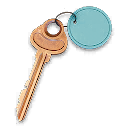
Open Songdo Wharf on the map and approach its southern waterfront buildings.
Use the Old Barber Shop key beside the crab shack on the southern side of Songdo Wharf. The key lists I7. The visible crab sign is the useful exterior landmark before checking the barber-shop lock.
Find your key or locked room
Browse every key in the Key FinderUse the Old Barber Shop key beside the crab shack on the southern side of Songdo Wharf. The key lists I7. The visible crab sign is the useful exterior landmark before checking the barber-shop lock.
Open the map search area · Check the matching key
Find the named entrance
- Open Songdo Wharf on the map and approach its southern waterfront buildings.
- Locate the crab shack by its prominent crab sign; the recorded opening uses this as the landmark for the neighboring shop.
- Check the adjoining shop entrance and confirm Old Barber Shop at the locked prompt.
- Use the matching key, then search the room before deciding whether to continue the wharf run.
Keep the barber key separate from wharf locker keys
The Gun Store Weapons Locker key opens named lockers at a different shop. Being in Songdo Wharf does not make those locks interchangeable. Use the crab-shack landmark to avoid turning this visit into a general search of every waterfront door.
What the room search establishes
The sampled opening shows a shotgun and other equipment, without establishing a special recipe or Manual reward. The key is listed as field loot, with no verified guaranteed pickup. If your backpack is already full of needed ingredients, compare the actual contents before replacing them.
Mentioned in this guide
Spotted something wrong? Send a correction.
Keep reading
 Guide · Combat & survivalDMZ exfil guide: extraction methods and emergency plans
 Guide · Bosses & PvPField Depot: air-base warehouse and maintenance-room entrance
 Guide · Bosses & PvPMW4 DMZ bosses: Lieutenants, Commanders and the Boss Board
 Guide · Bosses & PvPMW4 DMZ Deathstalker guide: SAM Sites, wreck loot and RF Modules